# Authentication
# Adding a Mobile Phone as a Sign-In Method for 2FA
As all staff are required to have **Two-Factor Authentication (2FA)** set up on their `@education` accounts to access Compass and other services, IT strongly recommends **adding your mobile phone number** as an additional sign-in method alongside Microsoft Authenticator.
---
## **Why This is Important**
- If you get a new phone, IT will **not need to log a ticket with DE** to reset your 2FA.
- Linking a mobile number allows you to **reset your password easily** using a verification code, without relying on security questions.
---
## **Step-by-Step Guide**
### **Step 1: Access Security Info**
1. From the Staff or Admin dashboards, click the link to your **Microsoft Account Security Info** page.
[](https://kb.wrc.vic.edu.au/uploads/images/gallery/2025-09/Dj8LDhl8Hm6IvLrJ-image-1757475259782.png)
2. Sign in with your Education credentials.
> **Tip:** Once signed in, you will see your existing security methods listed.
---
### **Step 2: Check Existing Methods**
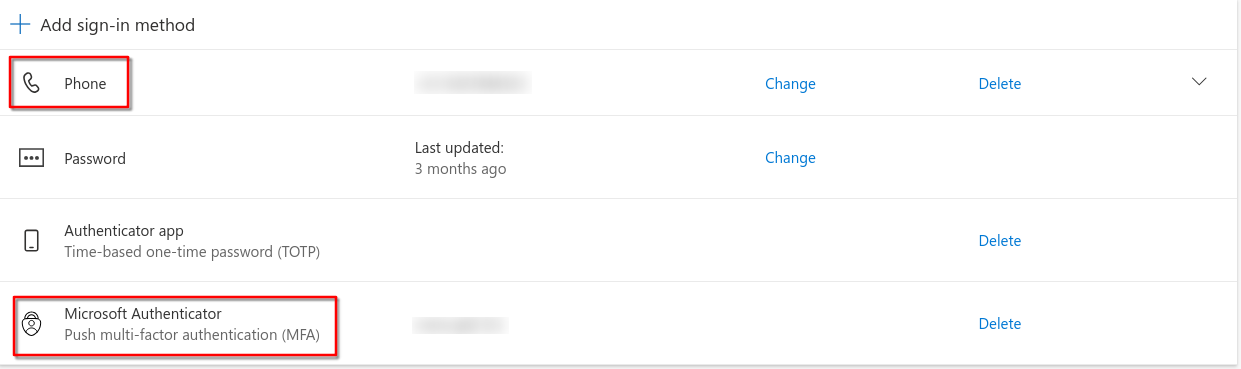
- If both **Phone** and **Microsoft Authenticator** appear, you’re all set.
- If not, continue to Step 3.
[](https://kb.wrc.vic.edu.au/uploads/images/gallery/2025-09/sEpYrgKUR1iP19Fq-image-1757475273615.png)
---
### **Step 3: Add Phone as a Sign-In Method**
1. Click **Add Sign-in method**.
[](https://kb.wrc.vic.edu.au/uploads/images/gallery/2025-09/vt7QsJvGnR3UnaPh-image-1757475288097.png)
2. Select **Phone**.
[](https://kb.wrc.vic.edu.au/uploads/images/gallery/2025-09/9c99SmR2Glx8NJTq-image-1757475303907.png)
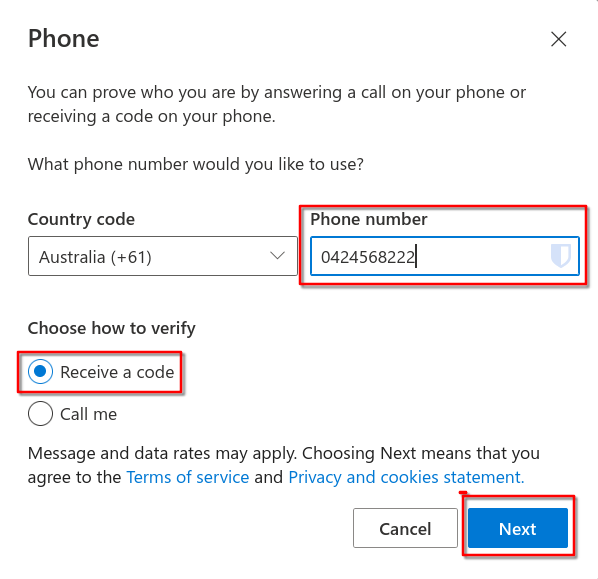
3. Enter your mobile number and set it to receive verification codes via SMS.
[](https://kb.wrc.vic.edu.au/uploads/images/gallery/2025-09/ntBBnUJrR54bjt2P-image-1757475335954.png)
4. Click **Next**.
---
### **Step 4: Verify Your Phone**
1. Enter the code you received via SMS.
[](https://kb.wrc.vic.edu.au/uploads/images/gallery/2025-09/Dh2Qtk3LJ38JxYuw-image-1757475350824.png)
2. Click **Next** to continue.
3. Click **Done** to finish setup.
[](https://kb.wrc.vic.edu.au/uploads/images/gallery/2025-09/5b7vEiyf7ICiFrTT-image-1757475369602.png)
---
## **Important Notes**
- If you **get a new phone or new phone number**, update your Microsoft Account security methods immediately.
- For a **new phone**, you will need to **remove and re-add the Microsoft Authenticator app**, as data does not transfer automatically.
- For a **new phone number**, update your security settings to continue receiving SMS codes without interruption.
---
> Following these steps ensures you always have reliable access to your account and can reset your password without delays.
# Guest Wi-Fi Access – Warragul Regional College
To use the **guest Wi-Fi network** at Warragul Regional College, you need either a **daily registration code** or login credentials.
To obtain a code or credentials, please contact the **WRC School IT Department**.
> **Note:** If you will be at WRC for **more than 2 days**, please see the IT department to have an account set up. This will allow you to **connect without registering a new account each day**.
---
## **Connecting with Credentials (Username & Password)**
1. Connect to the **eduSTAR_Guest** network.
- No password is required initially.
2. Once connected, you will be **redirected to a login or registration page**.
3. Enter the credentials provided to you and click **Login**.
4. You should now have internet access.
5. **Tip:** Save your username and password – you can use them to reconnect later without needing a new registration.
---
## **Connecting with a Daily Code**
1. Connect to the **eduSTAR_Guest** network.
- No password is required initially.
2. You will be **redirected to a login or registration page**.
3. **Complete the registration form** to create a temporary account for the day.
- Once registered, you will be **emailed a username and password**.
4. Enter the provided credentials and click **Login**.
5. You should now have internet access.
> **Important:**
> - Daily accounts are valid for **one day only**.
> - If you register again on a different day, you must use a **different username**.
---
## **Additional Resources**
- A DE-provided **Self-Register Guide** can be found [here](https://edugate.eduweb.vic.gov.au/edrms/project/SITP/GuestWiFi_Docs/eduSTAR%20Guest%20Wireless%20Self-Register%20Guide%20v0.6.pdf
).
- For more information and user guides, please click [here](https://edugate.eduweb.vic.gov.au/edrms/project/SITP/Pages/SG_WiFi.aspx
).
---
## **Known Errors / Issues**
**Error:** End time is before current date/time
- This indicates a **problem with your browser cache**.
- [Clear your cache and attempt registration again](https://www.microsoft.com/en-us/edge/learning-center/how-to-manage-and-clear-your-cache-and-cookies?msockid=366cdcc288586ece249bc9fc89b26f6a).
- If the issue persists, contact the IT department for assistance.
# Set up the Microsoft Authenticator app
[Set up the Microsoft Authenticator app as your verification method - Microsoft Support](https://support.microsoft.com/en-us/account-billing/set-up-the-microsoft-authenticator-app-as-your-verification-method-33452159-6af9-438f-8f82-63ce94cf3d29 "https://support.microsoft.com/en-us/account-billing/set-up-the-microsoft-authenticator-app-as-your-verification-method-33452159-6af9-438f-8f82-63ce94cf3d29")
[Microsoft Authenticator - Apps on Google Play](https://play.google.com/store/apps/details?id=com.azure.authenticator&hl=en_US "https://play.google.com/store/apps/details?id=com.azure.authenticator&hl=en_US")
[Microsoft Authenticator on the App Store (apple.com)](https://apps.apple.com/au/app/microsoft-authenticator/id983156458 "https://apps.apple.com/au/app/microsoft-authenticator/id983156458")