# Microsoft
# # How to Report Suspicious Emails in Outlook
## Stay Safe – Report Phishing Emails
If you receive a suspicious email, you can quickly report it using the **Report Message** button in Outlook.
Reporting suspicious emails helps protect everyone at Warragul Regional College.
---
# Report Email in Outlook Desktop App
## Step 1 – Open the Suspicious Email
Click once on the email you think may be suspicious.
- Outlook inbox with suspicious email selected.
---
## Step 2 – Click the “Report” Button
At the top of Outlook, click:
**Report → Phishing**
****
- Outlook ribbon showing the Report button.
---
## Step 3 – Confirm the Report
A confirmation box may appear.
Click **Report Phishing**.
---
## Step 4 – Email is Sent to Microsoft for Analysis
The email will be:
- Removed from your inbox
- Sent to Microsoft for review
- Used to improve spam and phishing protection
✅ You’re done!
- Success confirmation message.
---
# Tips to Stay Safe
✅ Do not click suspicious links
✅ Do not open unexpected attachments
✅ Double-check sender email addresses
✅ When unsure, report the message
---
# Need Help?
If you are unsure whether an email is safe:
- Report the message using the steps above
- Contact your IT support team at it@wrc.vic.edu.au
---
# Microsoft Reference
Official Microsoft Guide:
https://learn.microsoft.com/en-us/defender-office-365/submissions-outlook-report-messages
# # ✅ How to Stop Microsoft Edge Opening PDFs (Make Them Open in Adobe)
By default, Microsoft Edge often opens PDF files inside the browser.
Follow these steps to make PDFs download instead, so they can open in **Adobe Acrobat Reader**.
---
## Step-by-Step Guide (Easy Method)
### 1. Open Microsoft Edge
- Click the **Edge** icon on your computer.
---
### 2. Open Settings
1. Click the **three dots (⋯)** in the top-right corner.
2. Select **Settings**
---
### 3. Search for PDF Settings
Instead of clicking through menus:
- Click in the **Search settings** box on the left
- Type:
`PDF`
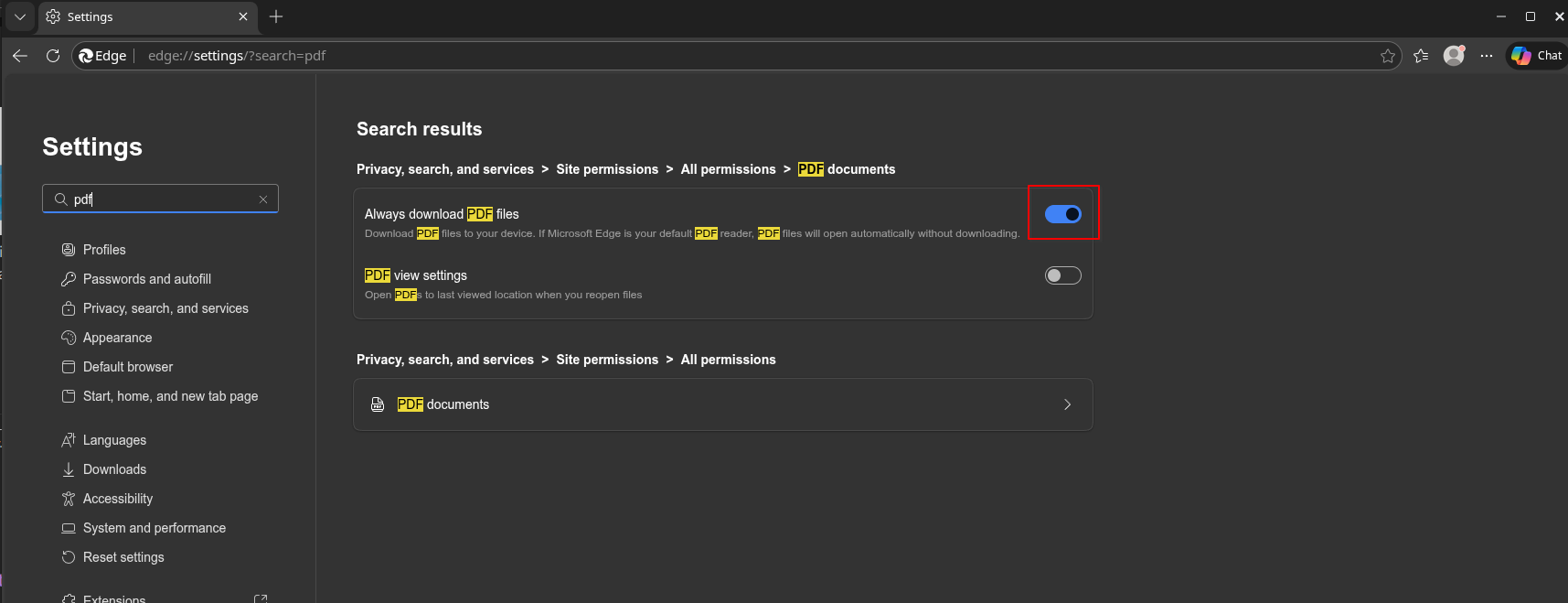
This will quickly bring up the PDF options (as shown in the screenshot).
---
### 4. Turn On “Always Download PDF Files”
Under **PDF documents**, switch on:
✅ **Always download PDF files**
[](https://kb.wrc.vic.edu.au/uploads/images/gallery/2026-02/OncSOKDGx7RBbBM5-image-1770175484538.png)
---
## ✅ What This Does
Once enabled:
- PDFs will **no longer open inside Edge**
- They will instead **download automatically**
- Staff and Students can then open them using **Adobe Acrobat Reader**
---
## Optional Extra Step (Recommended)
To ensure Adobe opens PDFs by default:
1. Right-click any PDF file
2. Select **Open with → Choose another app**
3. Choose **Adobe Acrobat Reader**
4. Tick:
✅ **Always use this app to open PDF files**
---
### ✅ Finished!
Now PDFs will download and open in Adobe instead of Edge.
# Find student email addresses in Outlook
Visibility of students is restricted by default in the Microsoft Outlook Address Book.
To find students at school, you will need to change the scope you are looking at in the Address Book.
Use any method to open your address book:
[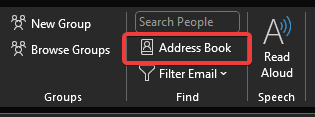 ](https://kb.wrc.vic.edu.au/uploads/images/gallery/2024-11/eqQimage.png)[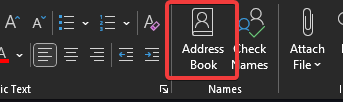](https://kb.wrc.vic.edu.au/uploads/images/gallery/2024-11/luBimage.png) [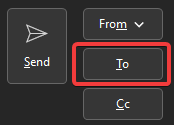](https://kb.wrc.vic.edu.au/uploads/images/gallery/2024-11/eygimage.png)
Select the Address Book drop-down menu and select **Students - Warragul Regional College**:
[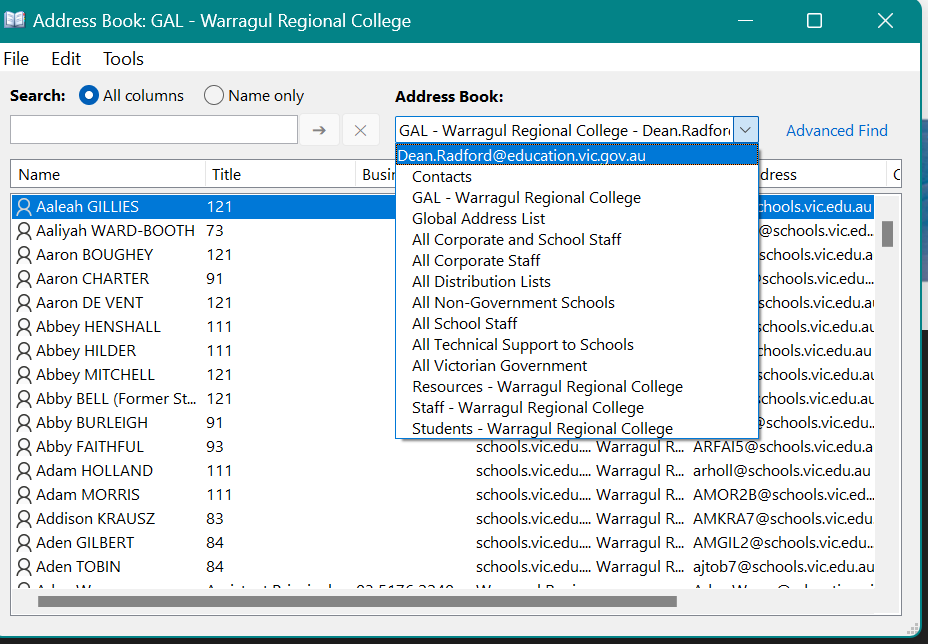](https://kb.wrc.vic.edu.au/uploads/images/gallery/2024-11/Oz5image.png)
[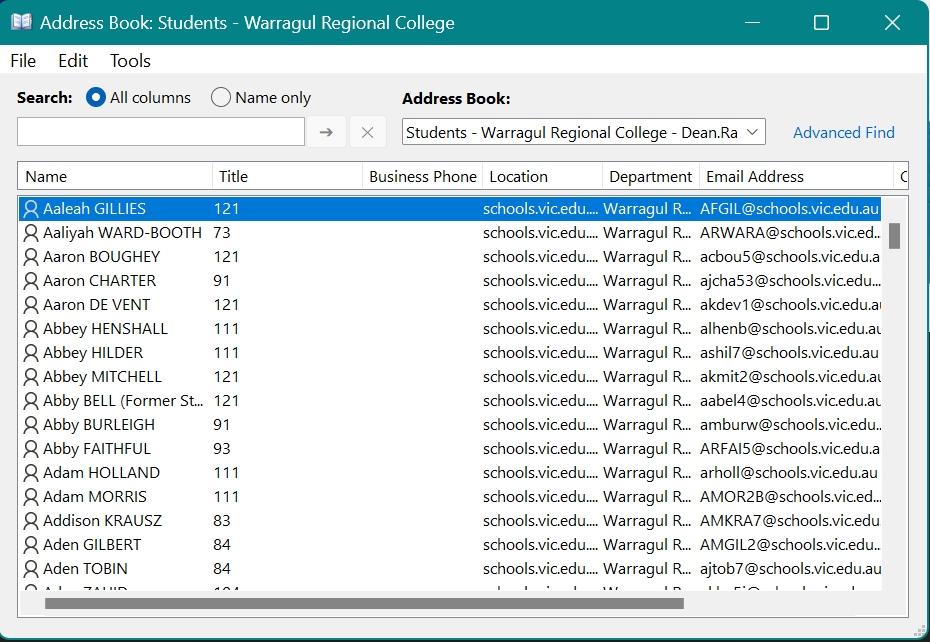](https://kb.wrc.vic.edu.au/uploads/images/gallery/2024-11/QlZimage.png)
All students enrolled at WRC will be displayed. You can search specific students using the search field:
[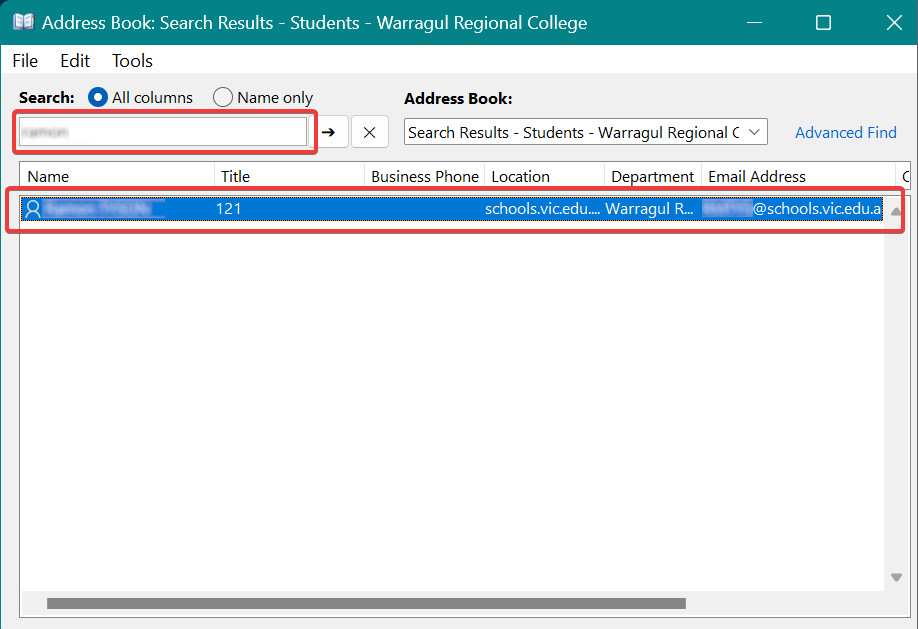](https://kb.wrc.vic.edu.au/uploads/images/gallery/2024-11/A92image.png)
Open the entry to display information about the student:
[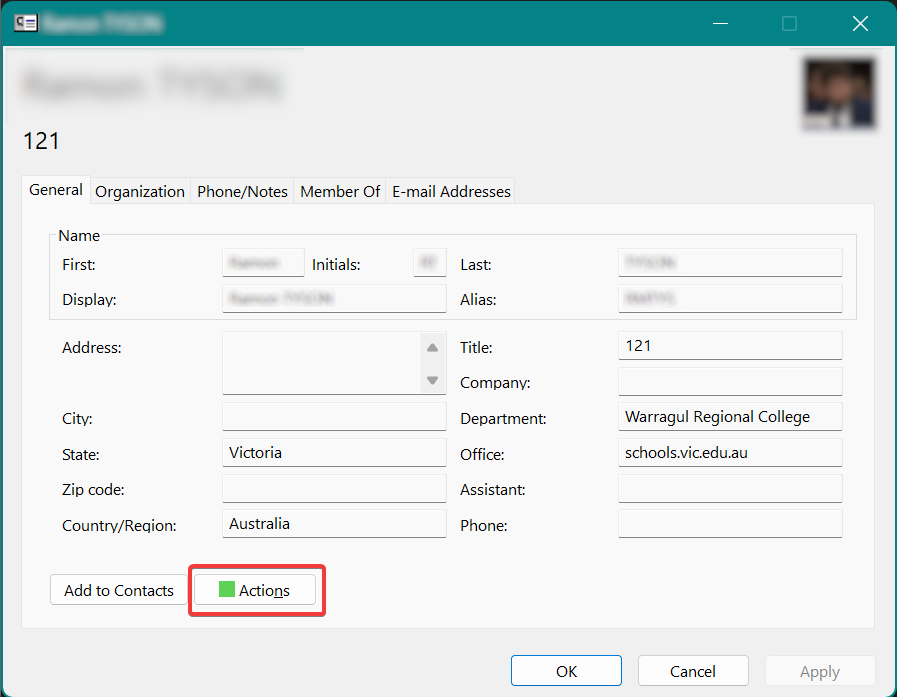](https://kb.wrc.vic.edu.au/uploads/images/gallery/2024-11/P12image.png)
Click Actions to see a contact card with the students email address:
[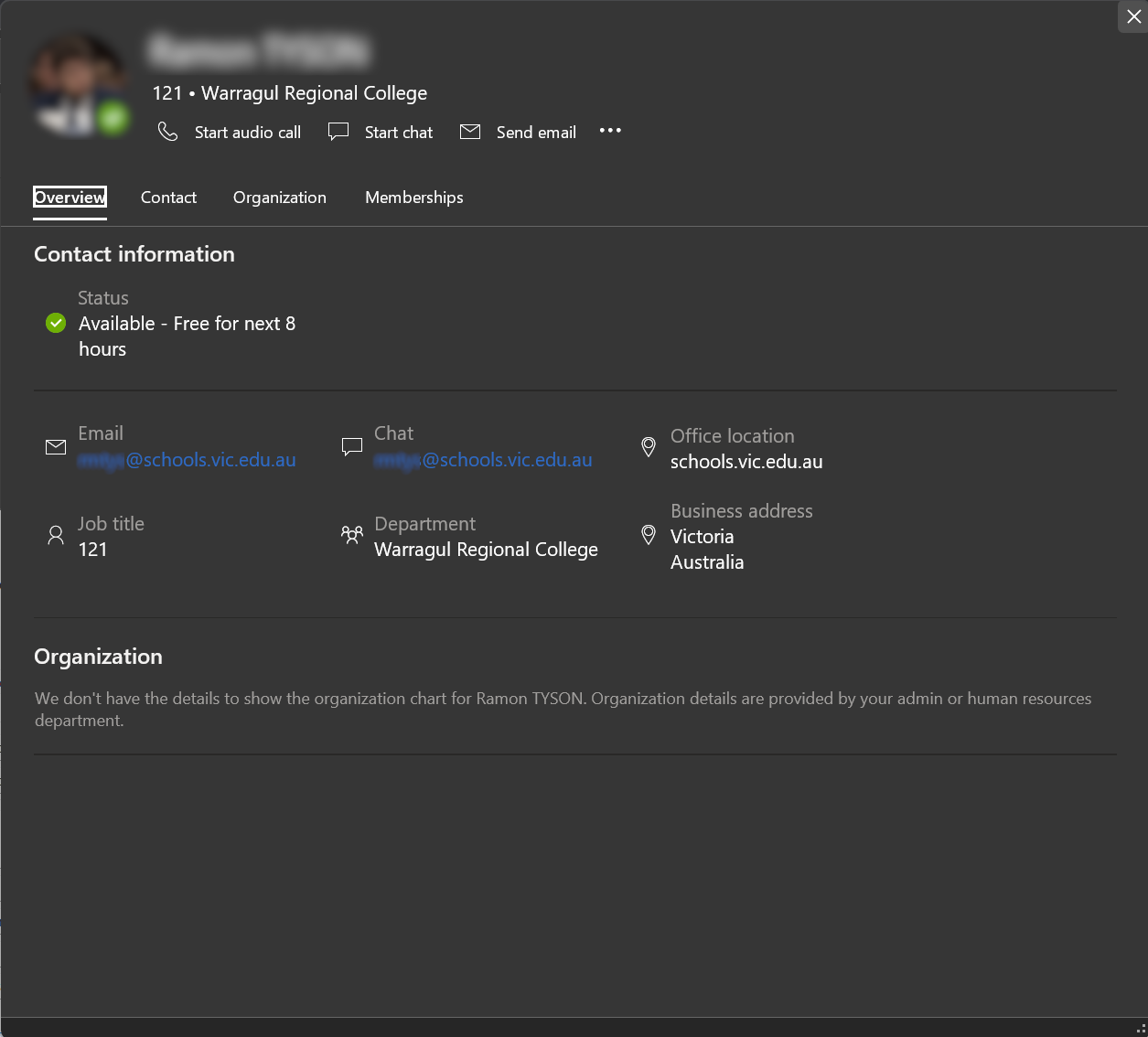](https://kb.wrc.vic.edu.au/uploads/images/gallery/2024-11/cvBimage.png)
[](https://kb.wrc.vic.edu.au/uploads/images/gallery/2024-11/doEimage.png)
# How to Access your Sticky Notes from Outlook.
To view your Sticky Notes in Outlook desktop app:
**1.** Open Outlook and, if you haven't already done so, add your Microsoft account to Outlook. (From **File** menu, click **Add Account** and then follow the onscreen instructions to add your MS Account).
[](http://10.132.200.87:6875/uploads/images/gallery/2024-08/ZJMimage.png)
2\. After adding your MS account, click on More apps iconimage on the sidebar and click Notes, to view your Sticky Notes in Outlook.
[](http://10.132.200.87:6875/uploads/images/gallery/2024-08/uRlimage.png)
To view your Sticky Notes in Outlook for web:
**1.** Go to [Outlook.com](https://outlook.live.com/owa/ "https://outlook.live.com/owa/") and log in with your Microsoft account.
**2.** From the left-side navigation panel, click **Notes** under the Folders section.
[](http://10.132.200.87:6875/uploads/images/gallery/2024-08/qvFimage.png)
**3.** Here, you can access all your synced notes. By right-clicking on the sticky note, you can easily copy its contents and paste them somewhere else if required.
[](http://10.132.200.87:6875/uploads/images/gallery/2024-08/1VVimage.png)
**Tip:** If you accidentally deleted one of your sticky notes, you can also easily restore them from Outlook. Just go to the **Deleted Items** folder, select the deleted note and click the **Restore** button on the Toolbar.
THIS HOW TO IS FROM [https://www.wintips.org/](https://www.wintips.org/ "https://www.wintips.org/")
# How to manage saved passwords in Microsoft Edge
[How to manage saved passwords in Microsoft Edge - Microsoft Community](https://answers.microsoft.com/en-us/microsoftedge/forum/all/how-to-manage-saved-passwords-in-microsoft-edge/e80f5472-5e37-4053-a857-5ec1e5f4fa94)
# How to share Microsoft Forms with others by saving them as a template
[https://youtu.be/65Yx\_b13v0k](https://youtu.be/65Yx_b13v0k "https://youtu.be/65Yx_b13v0k")
# Microsoft Teams video training - Microsoft Support
[https://support.microsoft.com/en-au/office/microsoft-teams-video-training-4f108e54-240b-4351-8084-b1089f0d21d7](https://support.microsoft.com/en-au/office/microsoft-teams-video-training-4f108e54-240b-4351-8084-b1089f0d21d7)
# Minecraft Education Edition - Quick guide for staff
[](http://10.132.200.87:6875/uploads/images/gallery/2024-08/mAkimage.png)
# Minecraft Education Edition - Quick guide for students
[](http://10.132.200.87:6875/uploads/images/gallery/2024-08/image.png)
# Naming Microsoft Teams
**When creating new Microsoft Teams, please remember to use the naming convention "8827-nameofteam." This will make finding the team a lot easier and will prevent naming conflicts. Additionally, please add the account 8827-apps@schools.vic.edu.au as an owner. This way, I.T. can help with any issues that may arise.**
### **do not name a team as follows:**
**VICEDU - YEAR 7 CAMP 2025
CREEK CAMP 2025**
### **Correct Naming:**
**8827-Year-7-Camp-2025
8827-Creek-Camp-2025**
# Organize your inbox in Outlook
# Organize your inbox in Outlook Windows
[https://support.microsoft.com/en-us/office/organize-your-inbox-in-outlook-for-windows-5e81ba45-cc00-4be6-8ab6-434d12bc96c6](https://support.microsoft.com/en-us/office/organize-your-inbox-in-outlook-for-windows-5e81ba45-cc00-4be6-8ab6-434d12bc96c6 "https://support.microsoft.com/en-us/office/organize-your-inbox-in-outlook-for-windows-5e81ba45-cc00-4be6-8ab6-434d12bc96c6")
# How to use Outlook rules to easily organize your inbox
[https://www.windowscentral.com/how-manage-rules-outlook-and-take-back-your-inbox](https://www.windowscentral.com/how-manage-rules-outlook-and-take-back-your-inbox "https://www.windowscentral.com/how-manage-rules-outlook-and-take-back-your-inbox")
# How to Automatically Sort Emails Into Specific Outlook Folders
[https://www.howtogeek.com/442362/how-to-automatically-sort-emails-into-specific-outlook-folders/](https://www.howtogeek.com/442362/how-to-automatically-sort-emails-into-specific-outlook-folders/ "https://www.howtogeek.com/442362/how-to-automatically-sort-emails-into-specific-outlook-folders/")
# Prepare for Zscaler
#### 
Background:
Proxies are a way to tell your computer where the internet is, provide content filtering and more.
They have been used in schools for many decades, but in ~2020 the Department of Education decided to move away from the proxy model to a direct internet service model (Zscaler). This means the responsibility of internet filtering will be moved away from school systems to the DE instead, with increased internet speed and performance.
#### Actions Required:
If your device has **proxy settings** configured manually, they will need to be **removed.**
After completing this action, you will have student access / filtering until after the school migrates to Zscaler.
##### Windows
Open the **start menu**. 
Search for **proxy** and open **Proxy settings**.
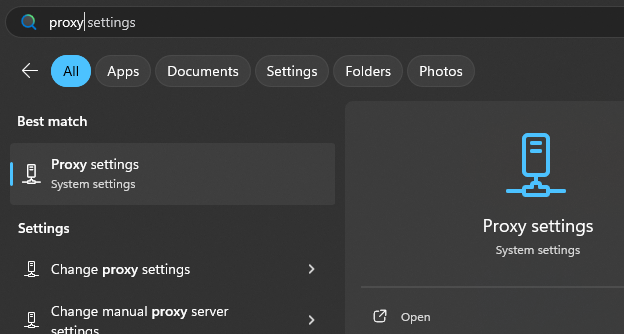
Ensure that **automatically detect settings** is set to **ON**.
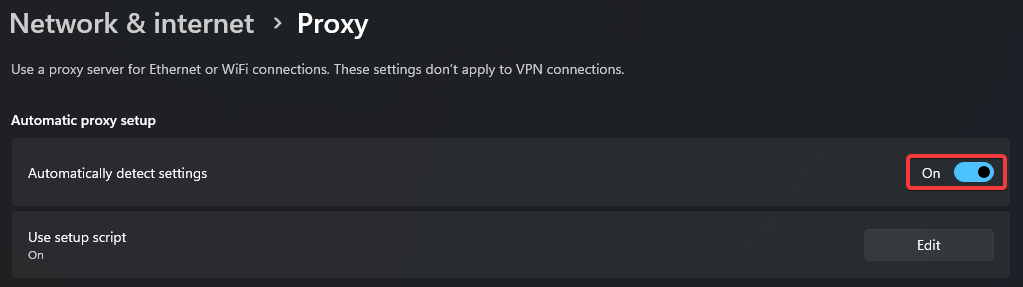
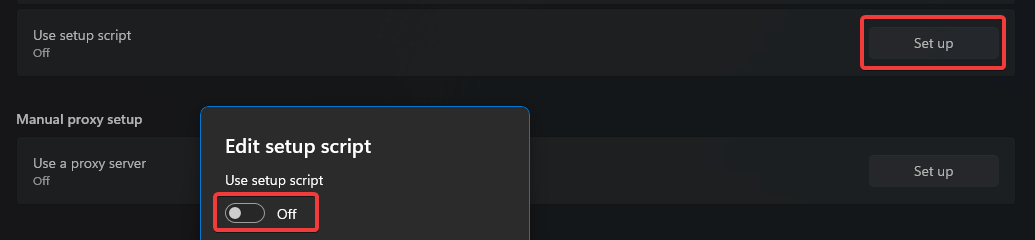
Ensure **setup script** is set to **OFF**.
[](https://kb.wrc.vic.edu.au/uploads/images/gallery/2024-09/Qltimage.png)
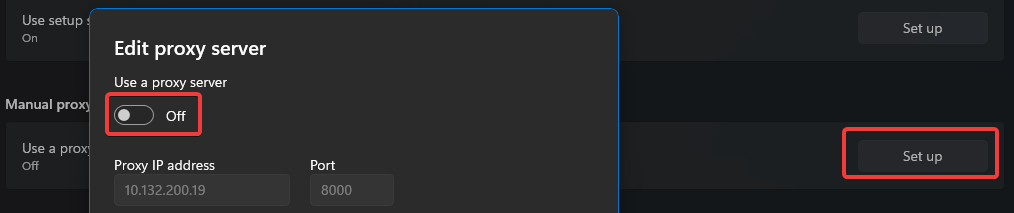
Ensure **manual proxy setup** is set to **OFF**.
[](https://kb.wrc.vic.edu.au/uploads/images/gallery/2024-09/8XBimage.png)
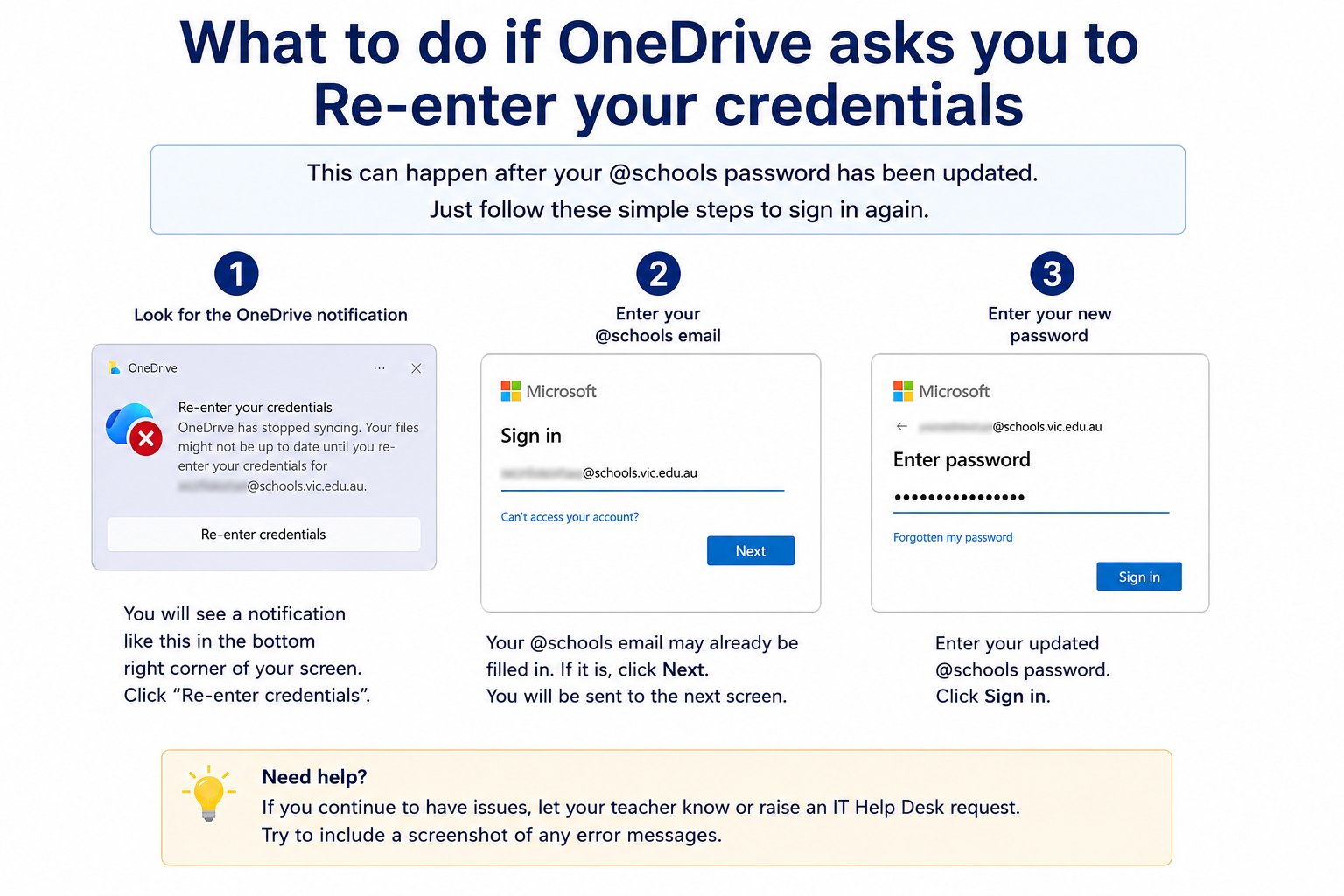
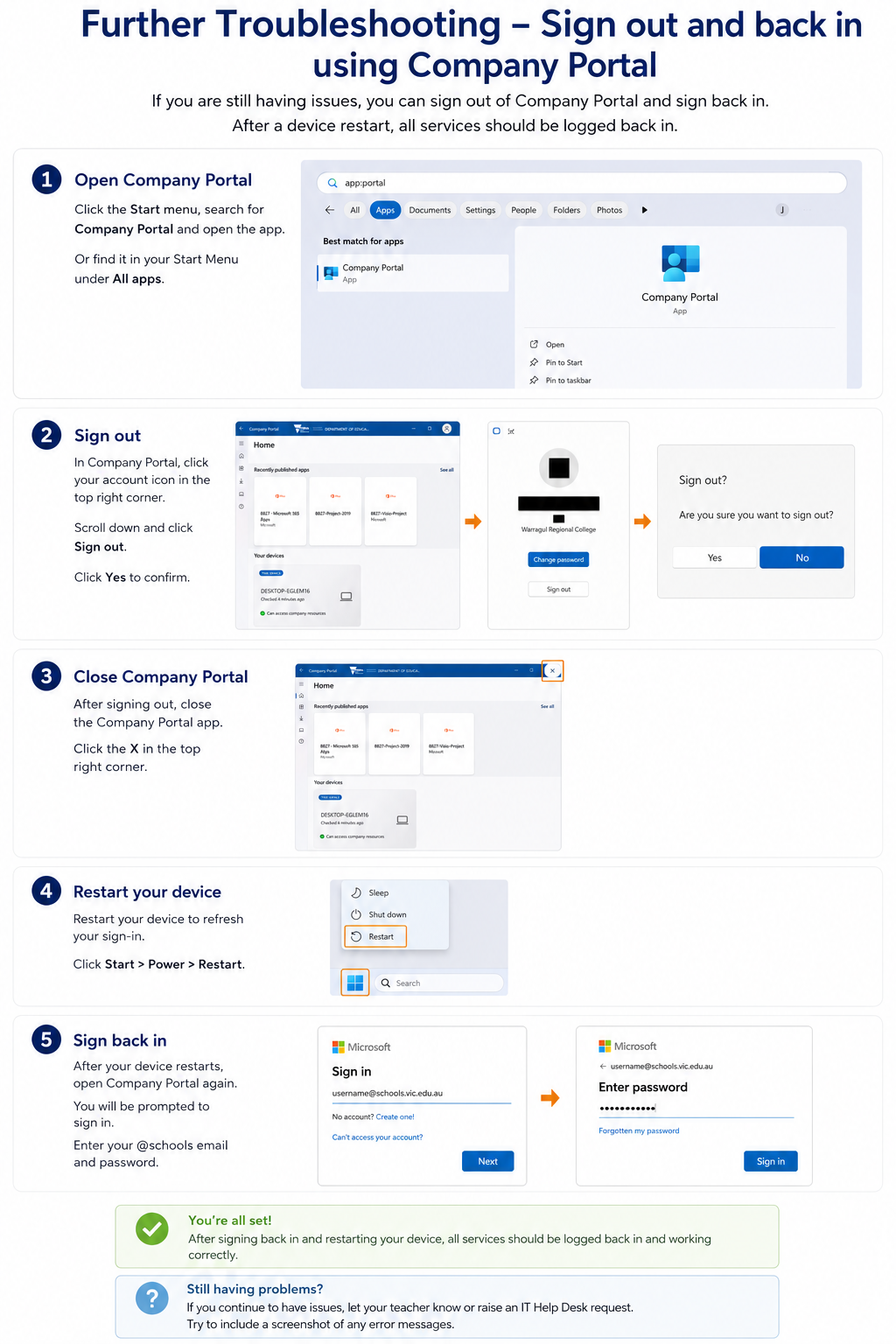
# Re-enter Credentials After Password Change
[](https://kb.wrc.vic.edu.au/uploads/images/gallery/2026-05/EwGBf2a6gbDu4f8z-onedrivereauth.png)
[](https://kb.wrc.vic.edu.au/uploads/images/gallery/2026-05/uFUE0YXvyvDRcpDD-reauthfurther-troubleshooting.png)
# Scanning To OneDrive
To use this option, you will need to perform a once-off authorization with Papercut. This authorization will come in the form of an email to your DET email address:
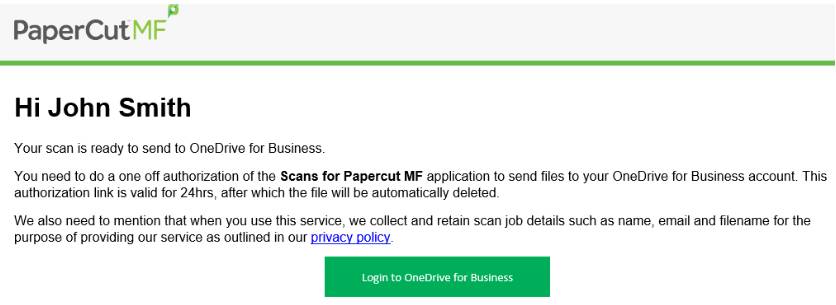
To authorize Papercut, click the big green button and sign in using your WRC credentials (**Important**).
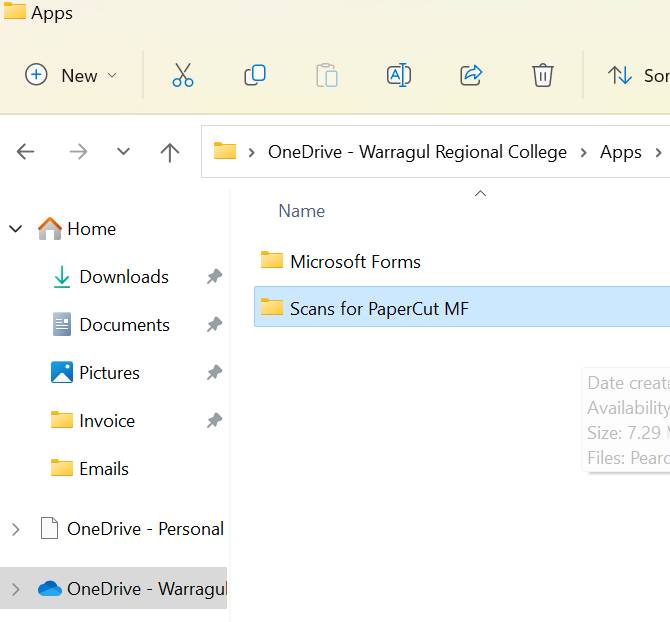
The scan should now appear in your OneDrive folder. under C:\\Users\\username\\OneDrive - Warragul Regional College\\Apps\\Scans for PaperCut MF
# Staying safe online using Microsoft Family
[Microsoft Family Safety \| Microsoft 365](https://www.microsoft.com/en-us/microsoft-365/family-safety?utm_campaign=later-linkinbio-microsoft365&utm_content=later-26835279&utm_medium=social&utm_source=linkin.bio&ocid=AID740657_FACEBOOK_oo_spl100003210296586)