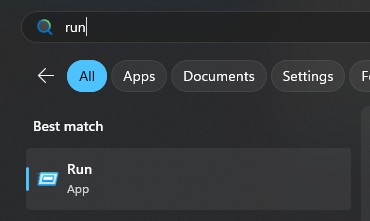
1. Open the Run dialog: Press the Windows key and the letter "R" together (Win+R), or search for run in the Windows start menu.
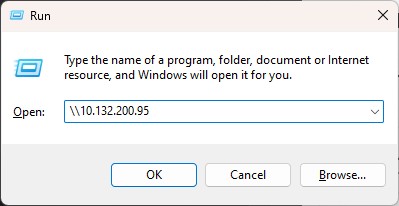
2. In the Run dialog box, type **\\\\10.132.200.95** and click OK. This will connect you to the print server.
3. Enter username and password: You will be prompted to enter your username and password.
- **Staff**: edu00**1**\\tonumber and your DE password.
- **Students**: edu00**2**\\username and your DE password.
Tick **Remember my credentials**.
[](https://kb.wrc.vic.edu.au/uploads/images/gallery/2024-10/Jhmimage.png)
4. File Explorer will open: Once you've entered the correct credentials, File Explorer will open, and you'll see a list of available printers.
Double click the 8827-Follow-Me print queue. This will initiate the installation process for the printer on your device.