# ✅ How to Stop Microsoft Edge Opening PDFs (Make Them Open in Adobe)
By default, Microsoft Edge often opens PDF files inside the browser.
Follow these steps to make PDFs download instead, so they can open in Adobe Acrobat Reader.
Step-by-Step Guide (Easy Method)
1. Open Microsoft Edge
- Click the Edge icon on your computer.
2. Open Settings
- Click the three dots (⋯) in the top-right corner.
- Select Settings
3. Search for PDF Settings
Instead of clicking through menus:
- Click in the Search settings box on the left
- Type:
PDF
This will quickly bring up the PDF options (as shown in the screenshot).
4. Turn On “Always Download PDF Files”
Under PDF documents, switch on:
✅ Always download PDF files
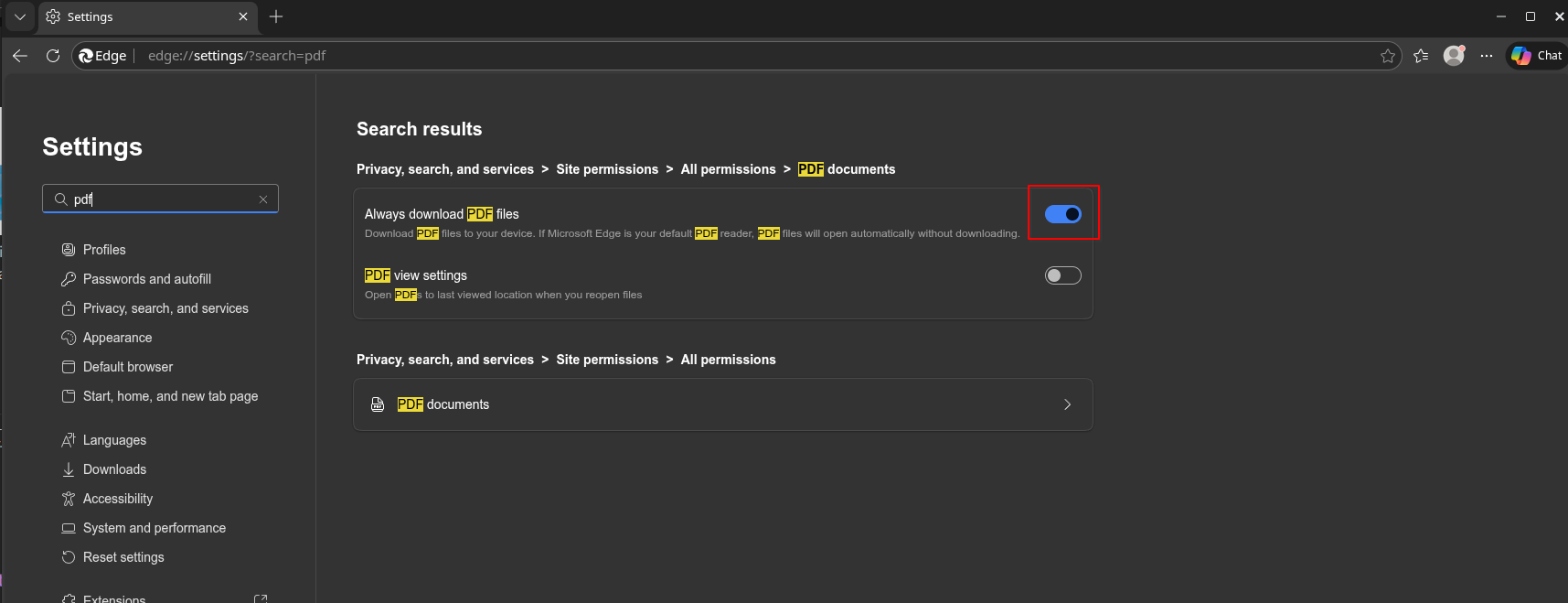
✅ What This Does
Once enabled:
- PDFs will no longer open inside Edge
- They will instead download automatically
- Staff and Students can then open them using Adobe Acrobat Reader
Optional Extra Step (Recommended)
To ensure Adobe opens PDFs by default:
- Right-click any PDF file
- Select Open with → Choose another app
- Choose Adobe Acrobat Reader
- Tick:
✅ Always use this app to open PDF files
✅ Finished!
Now PDFs will download and open in Adobe instead of Edge.