# Update @education password for printers

# Mac

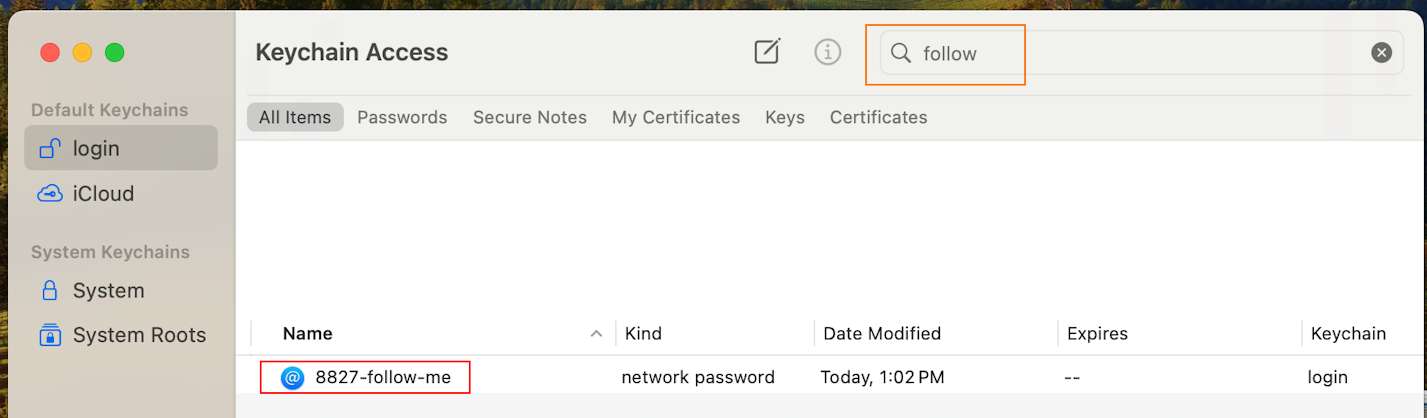
<div id="bkmrk-1.-open-%2F-search-for">1. Open / Search for **Keychain** Access.</div><div id="bkmrk-">![](https://support.wrc.vic.edu.au/api/v1/attachments/35505)  
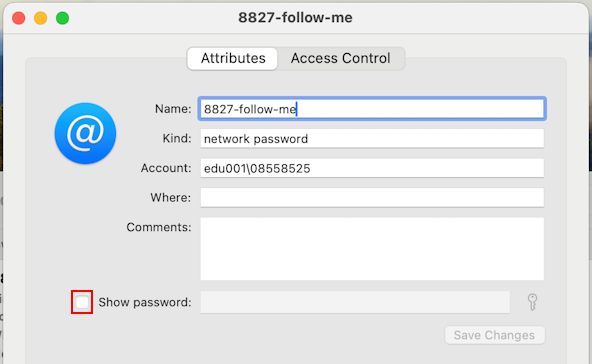
</div><div id="bkmrk-2.-search-for%C2%A08827-f">2. Search for **8827-follow-me** and open the entry.</div><div id="bkmrk--1">![](https://support.wrc.vic.edu.au/api/v1/attachments/35506)  
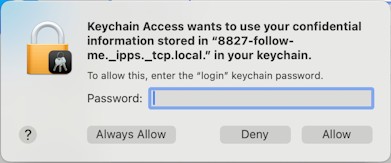
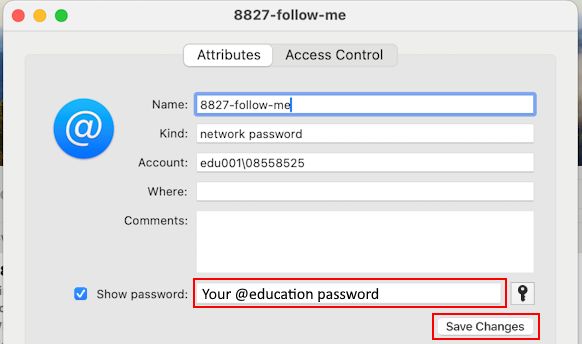
</div><div id="bkmrk-3.-tick%C2%A0show-passwor">3. Tick **Show Password**.</div><div id="bkmrk-%C2%A0">![](https://support.wrc.vic.edu.au/api/v1/attachments/35507) </div><div id="bkmrk-4.-enter-your%C2%A0mac-pa">4. Enter your **Mac Password** if prompted.</div><div id="bkmrk--2">![](https://support.wrc.vic.edu.au/api/v1/attachments/35508)</div><div id="bkmrk-4.-update-the-passwo"><div>4. Update the password field with your **new** @education password and click Save Changes.</div></div><div id="bkmrk--3">![](https://support.wrc.vic.edu.au/api/v1/attachments/35509)</div>