# Updating Saved Passwords for Network Drives and Printers
If you have recently changed your @education or @schools password, you may need to update the saved password in Credential Manager to regain access to your network drives and printers.
Windows Instructions
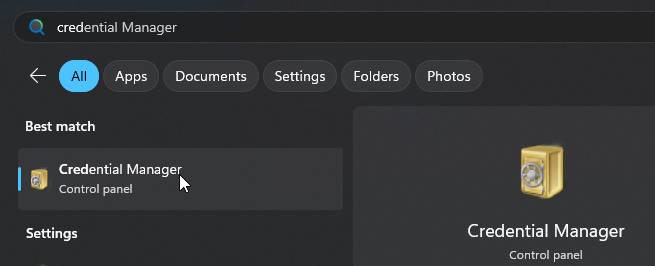
Step 1 — Open Credential Manager
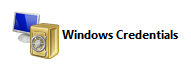
Step 2 — Open Windows Credentials
Click Windows Credentials.
Step 3 — Find Saved Network Drive and Printer Credentials
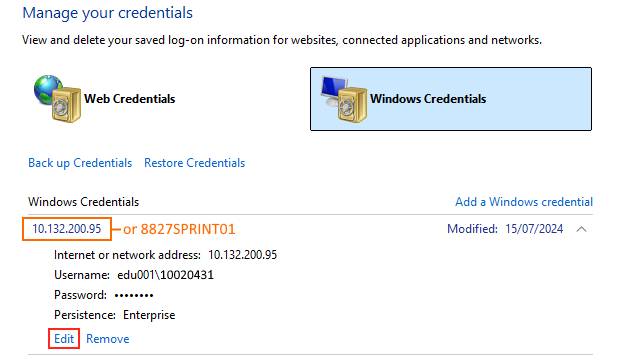
Look for entries named:
10.132.200.958827SPRINT01- Any other entries starting with:
10.1328827
These entries may be used for network drives and printer access.
Click each entry to expand it, then click Edit.
Step 4 — Update Your Password
Update the password field using your new @education or @schools password.
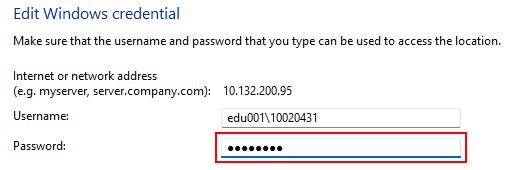
Username Format
Staff
edu001\username
Students
edu002\username
Click Save when finished.
Finished
Your network drives and printers should now reconnect correctly.
If you still have issues:
- Restart your laptop
- Try printing again
- Check your network drive access
- Contact the IT Department if the problem continues