# Student IT Induction
Welcome to Warragul Regional College. This guide will help you understand how to use your school laptop and access important digital services.
Logging into Your Laptop
The IT Department has set up your laptop with a local account.
- Username: Your first name and last name
- Password: The same as your
@schoolsaccount password
You can change your laptop password at any time.
Changing your laptop password will not change your @schools password.
Accessing the Internet
Your laptop is connected to the EduStar network, which provides internet access.
- Microsoft Edge is set as the default web browser
- Edge works best with Warragul Regional College systems
- When Edge opens, the Student Dashboard loads automatically
From the dashboard, you can access all required online services.
While using Microsoft Edge, most services will sign you in automatically.
If you have trouble signing in, ask your teacher for help.
Using Other Web Browsers
You may use other browsers such as:
- Google Chrome
- Brave
- Other web browsers
However, for school-related work, you should always use Microsoft Edge.
It provides the smoothest sign-in experience with school systems.
Student Dashboard
The Student Dashboard provides quick access to all school websites, apps, and services.
URL:
👉 https://studentdb.wrc.vic.edu.au
- Works at school and at home
- Opens automatically in Microsoft Edge
OneDrive Cloud Storage
Your laptop is set up to automatically back up files saved in:
- Desktop
- Documents
- Pictures
These folders sync to your @schools OneDrive.
Why this matters
- Your files are safe if your laptop is reset or replaced
- You can access your files while your device is being repaired
Accessing your files
- Through a web browser (sign in with your
@schoolsaccount) - Through File Explorer on library loan laptops
Files must be saved in the listed folders to sync correctly.
Library Loans
The school provides daily loan laptops for students who need them.
Daily loans are available if:
- Your device is being repaired
- You forgot your device
Important notes
- Loan laptops are borrowed from the library
- Must be returned before you leave school
- Laptop chargers are not loaned
If your battery is low, you can:
- Borrow a friend’s charger
- Take your device to the IT Department for charging
Long-term loans
A meeting is required between:
- IT Department
- Year Level Leader
- Parent or guardian
Accessing Your @schools Email
Outlook is installed on your device.
You can access your email by:
- Opening Outlook on your laptop
- Visiting
https://outlook.comorhttps://office.com
Sign in using your @schools account.
When using Microsoft Edge, you will usually be signed in automatically.
Printing
A printer called 8827-Follow-Me is installed on your device.
How printing works
- Select 8827-Follow-Me when printing
- Release your print job at any printer (MFD) in the school
Once you receive your Compass card:
- Tap your card at the printer to log in
Until then:
- Log in using your
@schoolsaccount details
Scanning
You can scan documents at any printer (MFD).
Scanning steps
- Log in using your Compass card or
@schoolsdetails - Tap Scan
- Tap Scan to OneDrive
When the scan is finished:
- You’ll receive an email with a link to your scanned file
First-time setup
The first time you scan, you’ll receive an email asking you to:
- Set up OneDrive permissions
You must accept this for scanning to work.
File Explorer / Finder
Windows – File Explorer
The default file manager used to manage:
- Files
- Folders
- Disks
macOS – Finder
The default file manager used to manage:
- Files
- Folders
- Applications
- Disks
Recommended Folder Structure
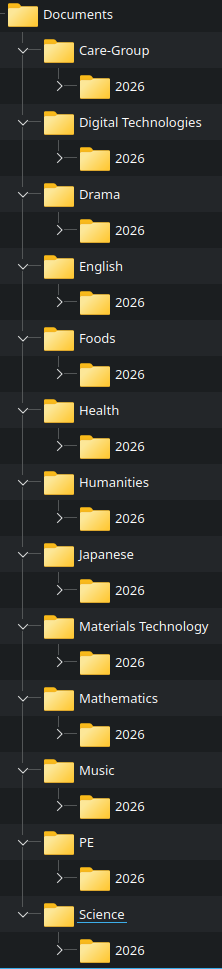
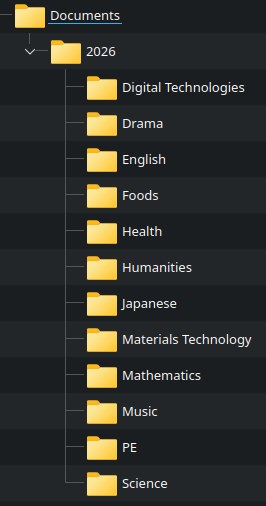
- Downloads: Files downloaded from the internet all Downloads are saved in your Downloads folder For Windows C:\users\username\Downloads -- For MACOS /Users/username/Downloads/
Compass
Compass is used for:
- Timetables
- Reports
- Chronicles
- Canteen
Accessing Compass
- Open the Student Dashboard
- Click Compass
- Click the orange login button
When using Microsoft Edge, you’ll usually be logged in automatically.
Canvas
Canvas is Warragul Regional College’s Learning Management System (LMS).
You use Canvas to:
- Access classes
- Submit schoolwork
- Receive feedback
Accessing Canvas
- Open the Student Dashboard
- Click Canvas
- Sign in using your
@schoolsaccount
Microsoft Edge usually signs you in automatically.
Printer (MFD) Faults & Issues
If a printer has:
- Paper jams
- No toner
- Full waste toner bottle
Please notify the IT Department.
Paper tray reminders
All printers have three trays:
- Tray 1: A4
- Tray 2: A3
- Tray 3: A4
If Tray 1 is empty, use Tray 3.
If Tray 2 is empty, refill it using paper from the D-Wing Resource Room.
Device Faults & Issues
For any device problems, visit the IT Office in D-Wing.
If the issue can’t be fixed within 5 minutes, we will:
- Create an IT ticket
- Provide an Estimated Time of Completion (ETC)
Updates
- Ticket updates appear on the IT Office window dashboard
- When ready, you’ll receive:
- An email notification
- A Compass grey Chronicle (visible to you, parents, and teachers)