
E10 - Register Edval Staff
To
Preamble
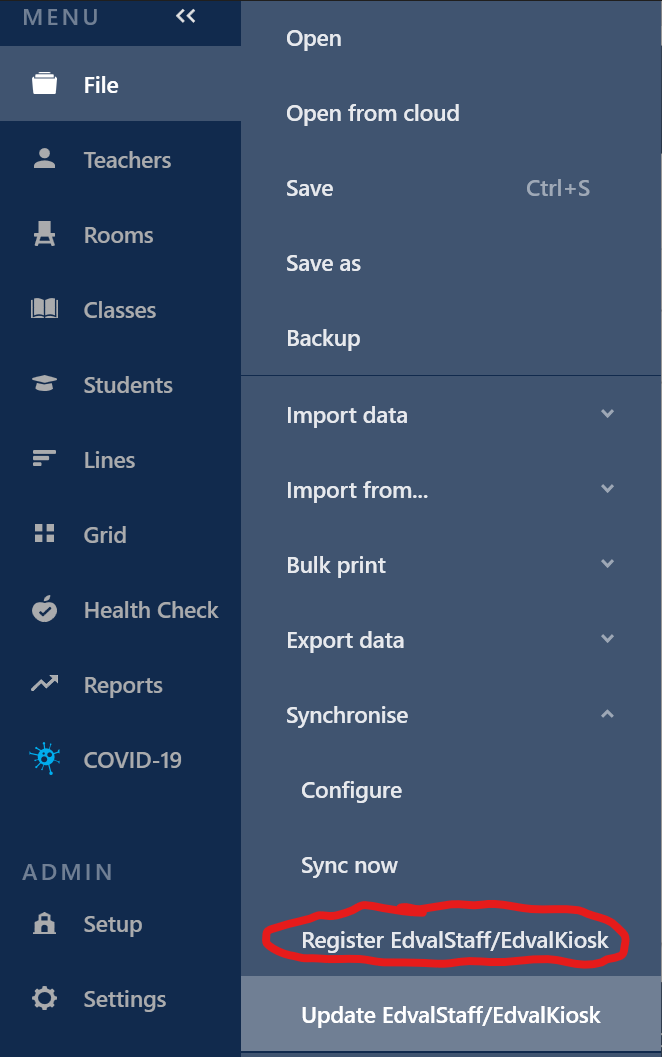
This document is designed to provide information about how to register the edvalcurrent .etz timetable file youto the EdvalStaff application.
Registering Edval Staff
Edval Staff must first be ‘registered’ so that all changes made in EdvalStaff feed directly into the correct .etz timetable file.
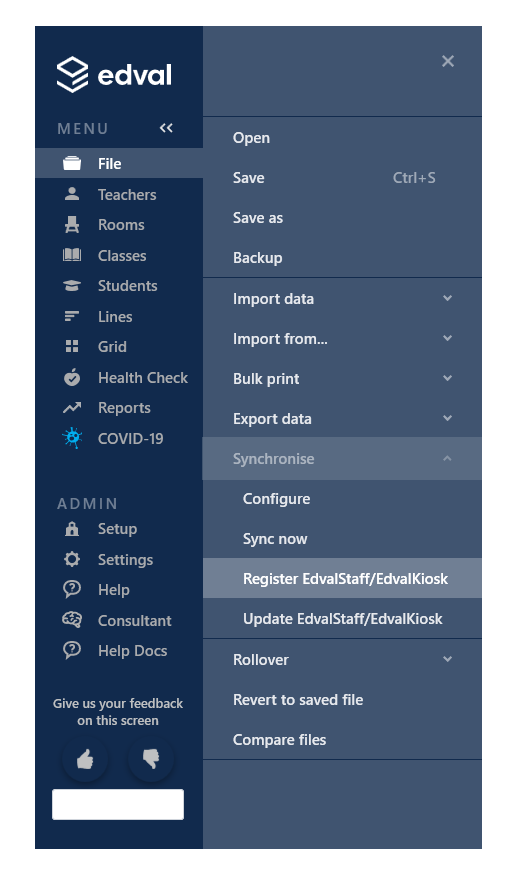
The 'Register Edval applications' window will prompt. Browse for the Edval Staff application and hit OK.
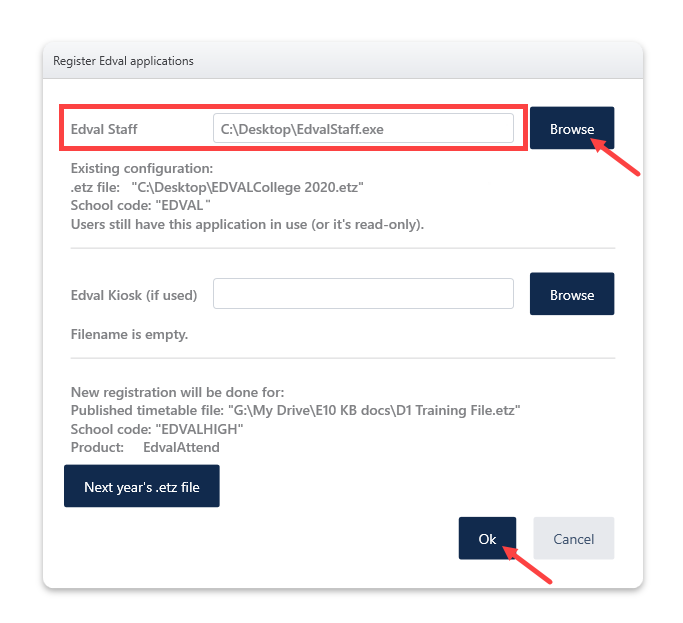
After registration is done, any changes made to student details or classes will be sent directly to the registered Edval etz file - there is no need to opensync edvalor fromsave in Edval Staff.
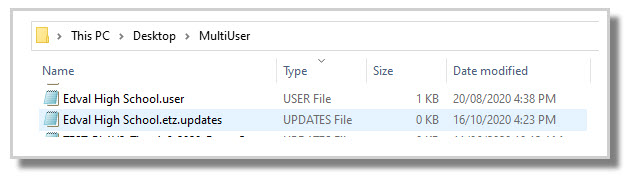
Changes are saved into an 'updates' file located in the
To
It edvalis staffgood dopractice thisto fromalways test that the shareregistration has been done correctly by either:
- Make a student change in Edval Staff, open the .etz timetable file and
notsave, then check to see if the student is showing the same change in the .etz file. - Add a dummy student in Edval Staff, open the .etz timetable file
serverand save, then check to see if the dummy student appears in the .etz file. - Check a student's timetable in Edval Daily to ensure the correct classes and timetable are displaying.
Updating Edval Staff
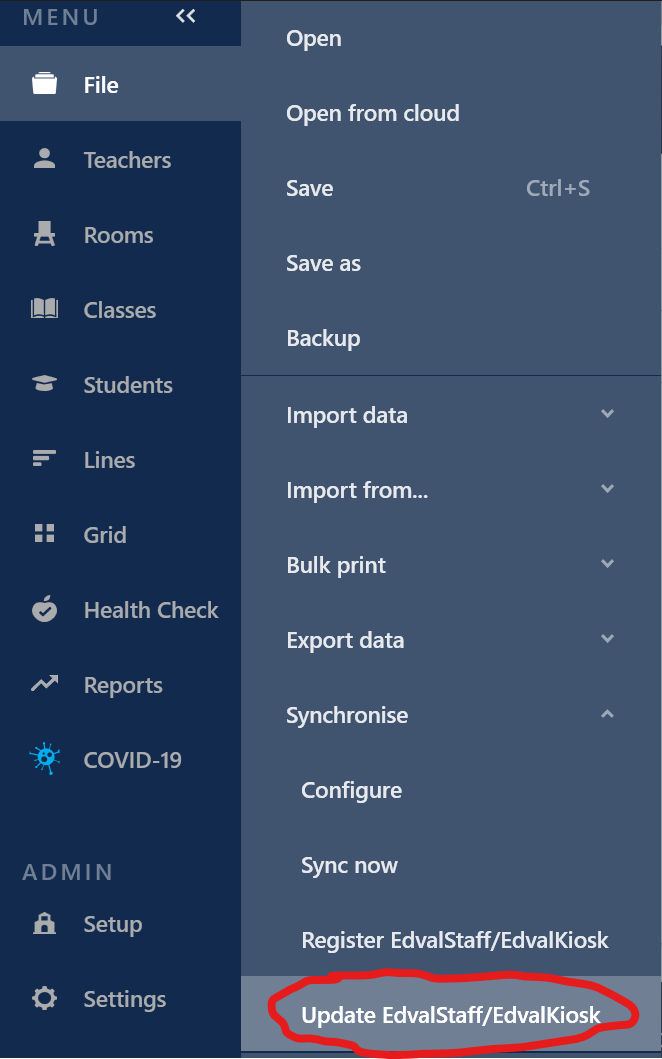
Edval Staff must be updated via the Edval .etz software in File > Synchronise > Update EdvalStaff/EdvalKiosk.