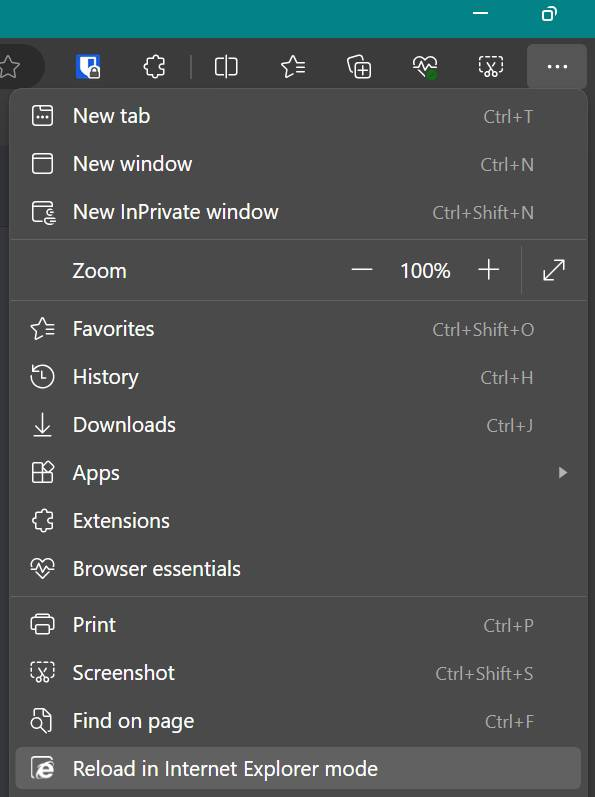
Internet Explorer mode in Microsoft Edge
To turn on Internet Explorer mode, use the following steps.
-
In the address bar for Microsoft Edge, typeedge://settings/defaultbrowserand then click Enter.

Slide the Allow sites to be reloaded in Internet Explorer toggle to ON.
Restart Microsoft Edge.
Internet Explorer mode is now enabled. To view a website using Internet Explorer mode in Microsoft Edge, use the following steps.
Navigate to the website you want to view in Internet Explorer mode.
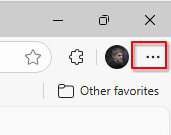
Click the three dots in the upper right corner of the browser window.
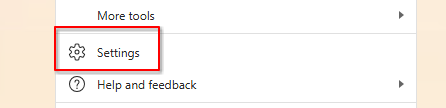
From the left sidebar, open the Default browser settings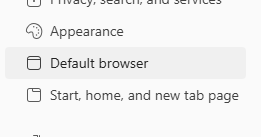
SelectIf not already configured, set Allow sides to be reloaded in IT mode to ReloadAllow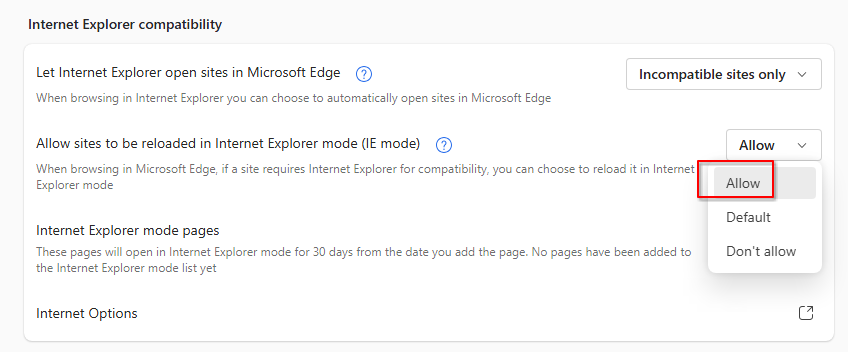
Click on the Add a page button and enter the URL of the website you need loaded in IE.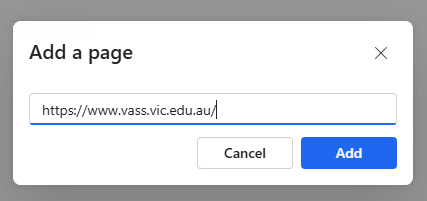
Visit the website and it should load in Internet Explorer Mode.Mode.