
Adding a Mobile Phone as a Sign-In Method for 2FA
As all staff are required to have Two-Factor Authentication (2FA) set up on their @education accounts to access Compass and other services, IT strongly recommends adding your mobile phone number as an additional sign-in method alongside Microsoft Authenticator.
Why This is Important
- If you get a new phone, IT will not need to log a ticket with DE to reset your 2FA.
- Linking a mobile number allows you to reset your password easily using a verification code, without relying on security questions.
Step-by-Step Guide
Step 1: Access Security Info
- From the Staff or Admin dashboards, click the link to your Microsoft Account Security Info page.

- Sign in with your Education credentials.

Tip: Once signed in, you will see your existing security methods listed.
Step 2: Check Existing Methods
- If both Phone and Microsoft Authenticator appear, you’re all set.
- If not, continue to Step 3.
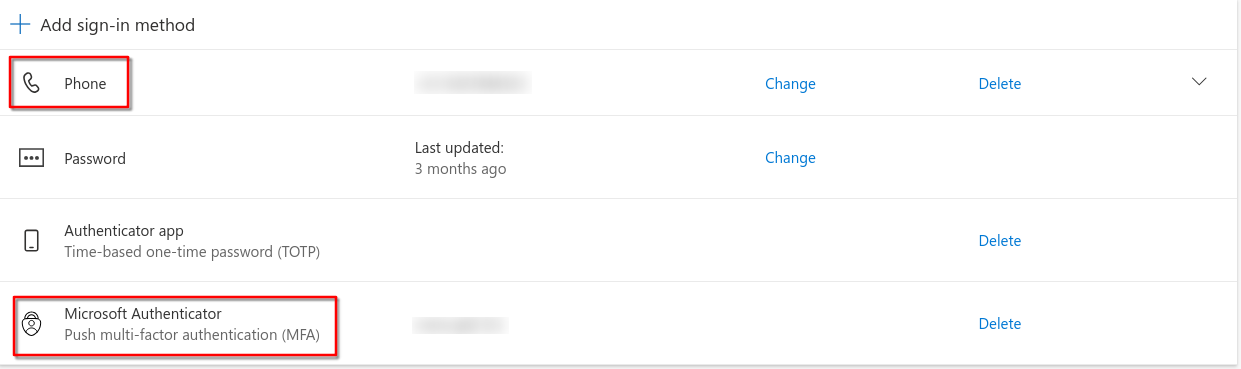

Step 3: Add Phone as a Sign-In Method
- Click Add Sign-in method.

- Select Phone.

- Enter your mobile number and set it to receive verification codes via SMS.
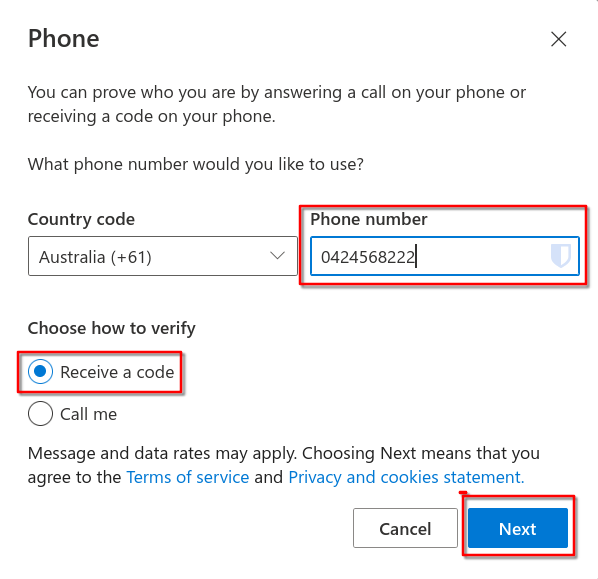
- Click Next.


Step 4: Verify Your Phone
- Enter the code you received via SMS.

- Click Next to continue.
- Click Done to finish setup.


Important Notes
- If you get a new phone or new phone number, update your Microsoft Account security methods immediately.
- For a new phone, you will need to remove and re-add the Microsoft Authenticator app, as data does not transfer automatically.
- For a new phone number, update your security settings to continue receiving SMS codes without interruption.
Following these steps ensures you always have reliable access to your account and can reset your password without delays.
No comments to display
No comments to display